 ProofCam
How to put the date and time on iPhone photos
The iPhone Camera app does not print the date or time on a photo. It saves them in the photo's hidden details, which you can see in the Photos app. To have the date, time and place visible on the photo itself, add them yourself afterwards or use a timestamp camera that stamps them as you shoot.
Four ways to do it
See the date in Photos
Open the photo and swipe up, or tap the info button. The date, time and, if location was on, the place are shown. They are not on the image, so anyone you send it to sees them only if their app shows photo details.
Free, built in. Nothing visible on the photo.
Write it on with Markup
In Photos, tap Edit, then Markup, and add a text box with the date. It is visible, but you type it by hand, one photo at a time.
Free, built in. Manual, and easy to get wrong.
Use a Shortcut
The Shortcuts app can add text over an image. You can build a shortcut that reads the photo's date and writes it on a copy.
Free, built in. Takes setup, runs after the photo is taken.
Use a timestamp camera
A camera app such as ProofCam stamps the date, time, address, GPS and your note onto the photo the moment you take it.
One tap. Visible on every photo. An app to install.
With ProofCam
- Open ProofCam. Allow Location if you want the address and GPS on the stamp, or use time-only mode.
- Take the photo. The stamp is part of the photo from that moment.
- Save it to Photos or send it. The stamp goes with it.
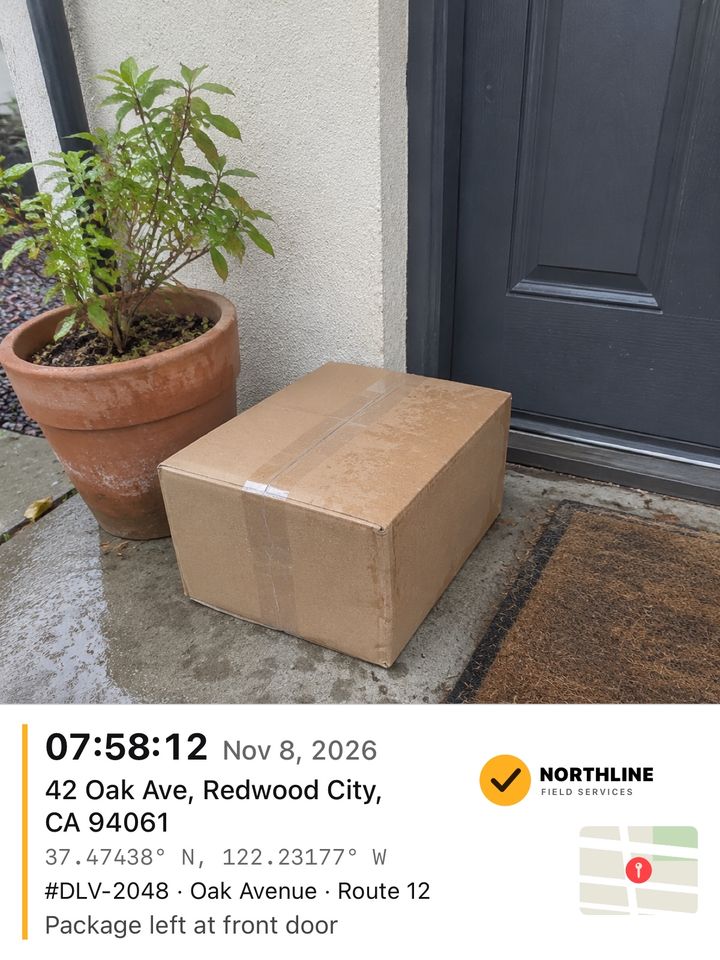
A stamped photo: time, date, address, GPS and a note.